Walmart Marketplace
This page contains the setup guide and reference information for Walmart Marketplace.
Prerequisites
- Client ID
- Client Secret
Setup guide
Step 1: Get your Walmart API keys
-
Log in to your Walmart seller dashboard.
-
Click on Settings -> API Key Management.
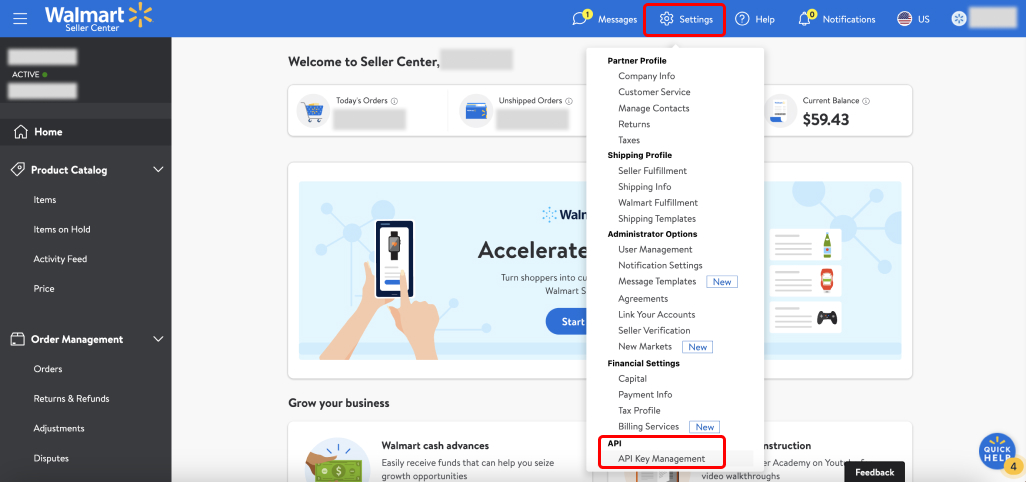
-
Once you're on the API Integrations page, click API Key Management. You will be redirected to the Walmart developer portal.
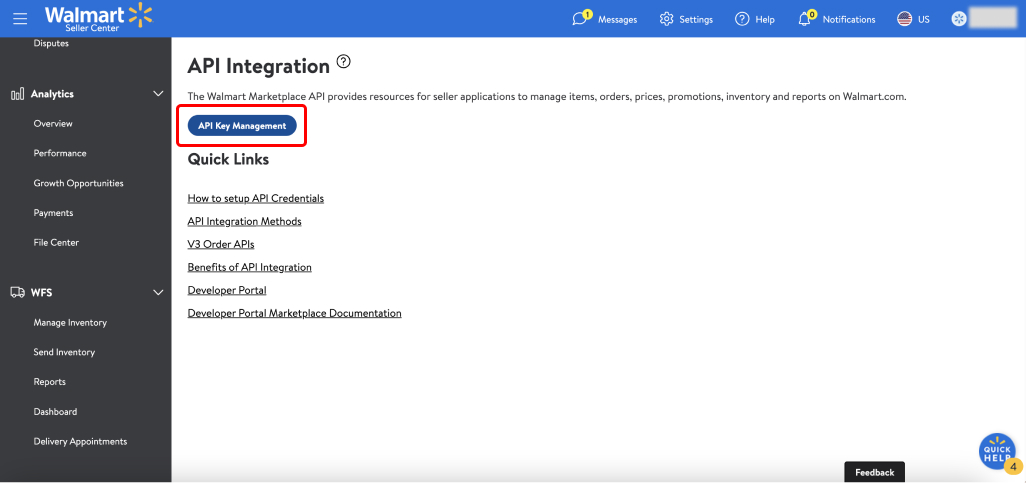
-
Note down the Client ID and Client secret on the My API Key section under the Production keys tab. These will be used to create the integration in Daspire.
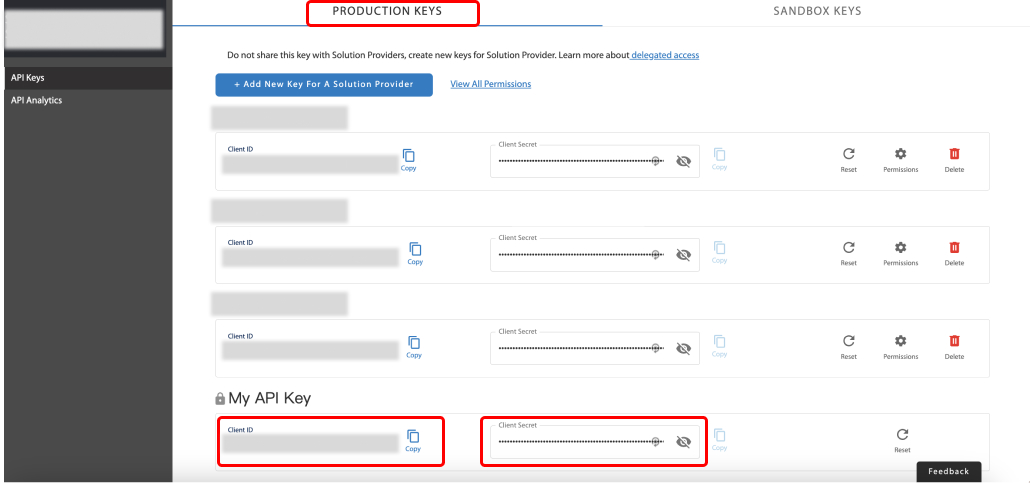
Step 2: Set up the Walmart data source in Daspire
-
Select Walmart from the Source list.
-
Enter a Source Name.
-
Enter your Walmart Store Name.
-
Enter your Walmart account Client ID.
-
Enter your Walmart account Client Secret.
-
In Data Replication Schedule, choose an option between Based on Start Date or Periodic Replication.
-
Click Save & Test.
Supported sync modes
The Walmart data source supports the following sync modes:
- Full Refresh
- Incremental
Supported streams
This source is capable of syncing the following streams:
- Items
- Orders
- Returns
- Multiple Item Inventory for All Ship Nodes
- WFS Inventory
- Get Shipments
- Get Inbound Shipment Items
- All Departments
Troubleshooting
Max number of tables that can be synced at a time is 6,000. We advise you to adjust your settings if it fails to fetch schema due to max number of tables reached.
Data type mapping
| Integration Type | Daspire Type |
|---|---|
string | string |
int, float, number | number |
date | date |
datetime | datetime |
array | array |
object | object |