GitHub
This page contains the setup guide and reference information for GitHub.
Prerequisites
- GitHub.com repositories or organizations to sync
- Either GitHub OAuth enabled by a Daspire administrator, or a GitHub personal access token
This connector currently targets GitHub.com. GitHub Enterprise Server API URLs are not supported by this connector version.
Features
| Feature | Supported? |
|---|---|
| Full Refresh Overwrite | Yes |
| Full Refresh Append | Yes |
| Incremental Sync Append | Yes |
| Incremental Sync Append + Deduped | Yes |
Setup guide
Step 1: Choose an authentication method
You can authenticate with GitHub OAuth or a personal access token.
For OAuth, a Daspire Owner or Administrator must first configure the deployment-wide GitHub OAuth app credentials in the GitHub source form. Register the callback URL shown in Daspire in your GitHub OAuth app settings before users authenticate.
For a personal access token:
-
Sign in to your GitHub account.
-
Go to Settings -> Developer settings -> Personal access tokens page.
-
Click Generate new token, select scopes which define the access for the token, and click Generate token.
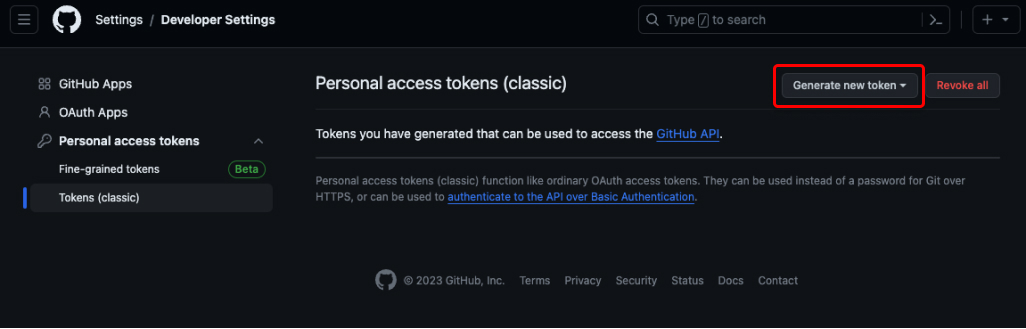
NOTE: Use the scopes
repo,read:org,read:repo_hook,read:user,read:discussion, andworkflowfor full private repository, organization, hook, discussion, and workflow stream coverage. Depending on which streams you want to sync, the user generating the token needs the corresponding GitHub permissions:
- For syncing Collaborators, the user which generates the personal access token must be a collaborator. To become a collaborator, they must be invited by an owner. If there are no collaborators, no records will be synced. Read more about access permissions here.
- For syncing Teams is only available to authenticated members of a team's organization. Personal user accounts and repositories belonging to them don't have access to Teams features. In this case no records will be synced.
- For syncing Projects, the repository must have the Projects feature enabled.
- Save your access token for later use.
Step 2: Set up GitHub in Daspire
-
Select GitHub from the Source list.
-
Enter a Source Name.
-
Authenticate with OAuth or Personal Access Token. To load balance your API quota consumption across multiple personal access tokens, input multiple tokens separated with
,. -
GitHub Repositories - Enter a list of GitHub organizations/repositories, e.g.
daspirehq/daspirefor single repository,daspirehq/daspiredaspirehq/daspire2for multiple repositories. If you want to specify the organization to receive data from all its repositories, then you should specify it according to the following example:daspirehq/*.
CAUTION: Save & Test reports inaccessible repositories, unknown repositories, unknown organizations, and organizations with no accessible repositories before the source is saved.
- Start date (Optional) - The date from which you'd like to replicate data for streams. For streams which support this configuration, only data generated on or after the start date will be replicated.
- These streams will only sync records generated on or after the Start Date:
comments,commit_comment_reactions,commit_comments,commits,deployments,events,issue_comment_reactions,issue_events,issue_milestones,issue_reactions,issues,project_cards,project_columns,projects,pull_request_comment_reactions,pull_requests,pull_requeststats,releases,review_comments,reviews,stargazers,workflow_runs,workflows.
- The Start Date does not apply to the streams below and all data will be synced for these streams:
assignees,branches,collaborators,issue_labels,organizations,pull_request_commits,pull_request_stats,repositories,tags,teams,users
-
Branch (Optional) - List of GitHub repository branches to pull commits from, e.g.
daspirehq/daspire/main. If no branches are specified for a repository, the default branch will be pulled. -
Page size for large streams (Optional) - Controls the GitHub API page size for streams that can return a large amount of data. Values between 10 and 30 are recommended for large repositories; the allowed range is 1 to 100.
-
Click Save & Test.
Supported streams
This source outputs the following full refresh streams:
- Assignees
- Branches
- Contributor Activity
- Collaborators
- Issue labels
- Organizations
- Pull request commits
- Tags
- TeamMembers
- TeamMemberships
- Teams
- Users
- Issue timeline events
This source outputs the following incremental streams:
- Comments
- Commit comment reactions
- Commit comments
- Commits
- Deployments
- Events
- Issue comment reactions
- Issue events
- Issue milestones
- Issue reactions
- Issues
- Project (Classic) cards
- Project (Classic) columns
- Projects (Classic)
- ProjectsV2
- Pull request comment reactions
- Pull request stats
- Pull requests
- Releases
- Repositories
- Review comments
- Reviews
- Stargazers
- WorkflowJobs
- WorkflowRuns
- Workflows
Notes
- Only 4 streams (
comments,commits,issuesandreview comments) from the listed above streams are pure incremental meaning that they:
- read only new records;
- output only new records.
- Streams
workflow_runsandworflow_jobsis almost pure incremental:
- read new records and some portion of old records (in past 30 days);
- the
workflow_jobsdepends on theworkflow_runsto read the data, so they both follow the same logic docs;- output only new records.
- Other 19 incremental streams are also incremental but with one difference, they:
- read all records;
- output only new records. Please, consider this behaviour when using those 19 incremental streams because it may affect you API call limits.
- Sometimes for large streams specifying very distant
start_datein the past may result in keep on getting error from GitHub instead of records. In this case Specifying more recentstart_datemay help. The "Start date" configuration option does not apply to the streams below, because the GitHub API does not include dates which can be used for filtering:
assigneesbranchescollaboratorsissue_labelsorganizationspull_request_commitspull_request_statsrepositoriestagsteamsusers
Performance consideration
The GitHub integration should not run into GitHub API limitations under normal usage. Refer to GitHub article Rate limits for the REST API.
Troubleshooting
Max number of tables that can be synced at a time is 6,000. We advise you to adjust your settings if it fails to fetch schema due to max number of tables reached.