NetSuite
This page contains the setup guide and reference information for NetSuite.
Daspire implements SuiteTalk REST Web Services. The source can read NetSuite records through REST Record Service and can also run named SuiteQL queries through REST Query Service.
For new NetSuite integrations, use OAuth 2.0 where possible. Token-Based Authentication (TBA) remains supported for existing connections and migration compatibility.
Prerequisites
- Oracle NetSuite account
- Allowed access to all Account permissions options
- Realm
- OAuth 2.0 access token, or OAuth 2.0 refresh token with client credentials
- For Daspire-managed one-click OAuth: a NetSuite OAuth 2.0 integration record with redirect URI set to your Daspire app URL plus
/auth_flow, and that customer's NetSuite Client ID and Client Secret saved from the NetSuite OAuth setup modal in Daspire - For legacy TBA connections: Consumer Key, Consumer Secret, Token ID, and Token Secret
- Language (the default language for your company)
Setup guide
Step 1: Setup NetSuite account and obtain required information
Step 1.1: Obtain Realm info
-
Login into your NetSuite account
-
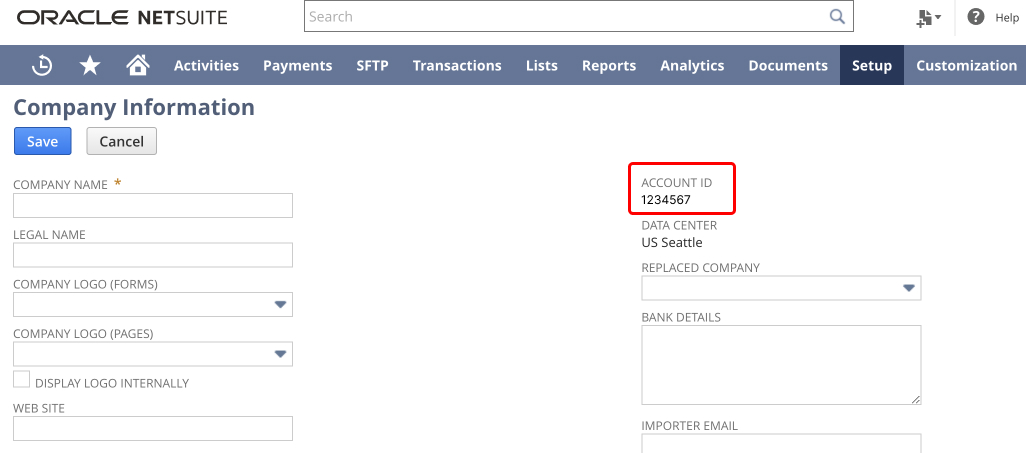
Go to Setup » Company » Company Information
-
Copy your Account ID. Your account ID is your Realm. It will looks like 1234567 if you use regular account or 1234567_SB2 if it is a Sandbox
Step 1.2: Enable features
-
Go to Setup » Company » Enable Features
-
Click on SuiteCloud tab
-
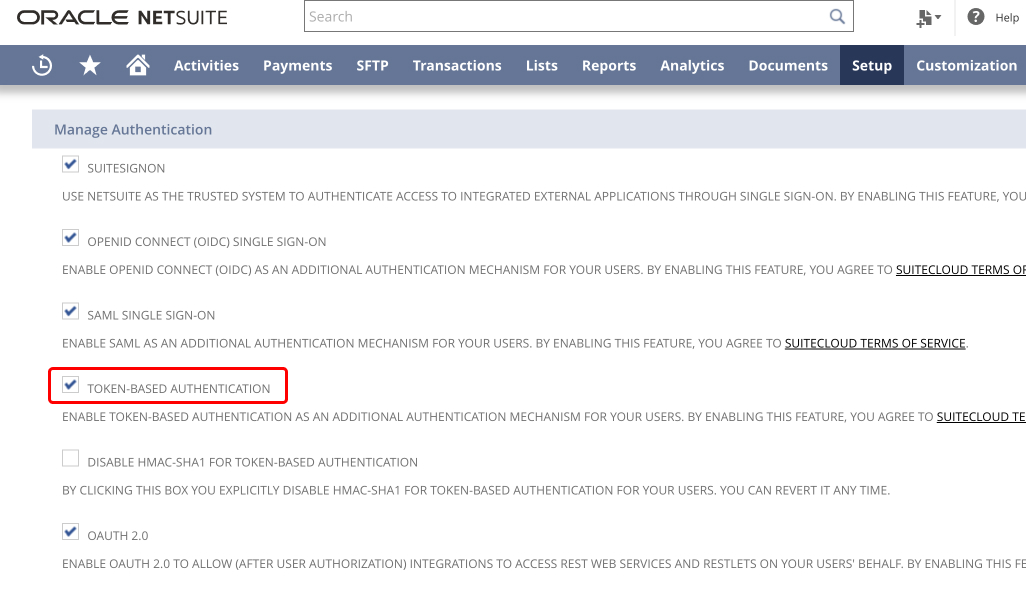
Scroll down to Manage Authentication section
-
Enable REST WEB SERVICES. For OAuth 2.0 connections, enable OAuth 2.0 for REST web services. For legacy TBA connections, enable TOKEN-BASED AUTHENTICATION.
-
Save changes
Step 1.3: Create Integration
-
Go to Setup » Integration » Manage Integrations » New
-
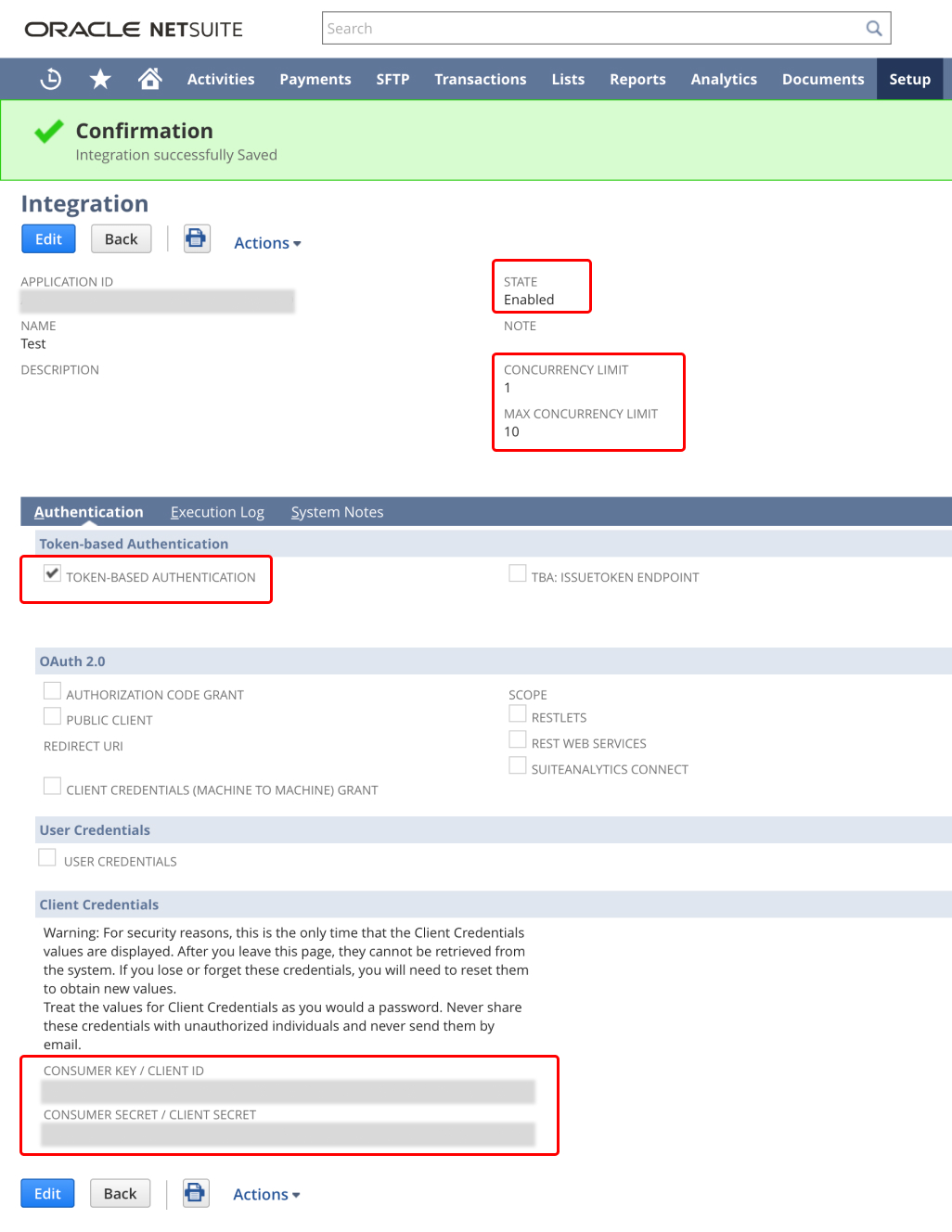
Fill the Name field. It is a just description of integration
-
State will keep enabled
-
Set up your Concurrency limit, and make sure it's equal or less than concurrency limit
-
For new connections, configure OAuth 2.0 authorization code access for REST web services. Use the
rest_webservicesscope for this source connector. For legacy connections, enable Token-Based Authentication in the Authentication section. -
If you use Daspire's one-click OAuth button, set the redirect URI on the NetSuite integration record to the Daspire web app callback URL, for example
https://app.daspire.com/auth_flow. The URI must exactly match the public web app URL used by your environment. -
Save changes
-
For OAuth 2.0, copy the Client ID and Client Secret shown by NetSuite. NetSuite displays the client secret only once; reset it if it is lost. Daspire obtains the access token and refresh token when the user clicks Save and authenticate in the NetSuite OAuth setup modal. For TBA, Consumer Key and Consumer Secret will be shown once; copy them.
Step 1.4: Setup Role
-
Go to Setup » Users/Roles » Manage Roles » New
-
Fill the Name field.
-
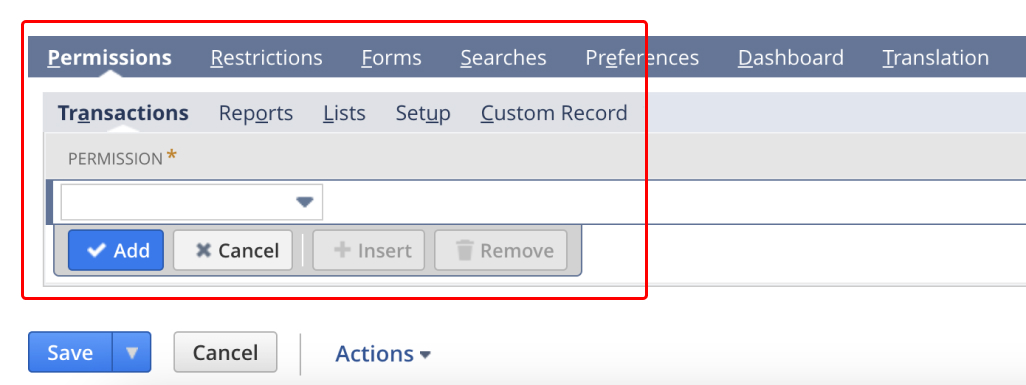
Scroll down to Permissions tab.
-
You need to select manually each record on selection lists and give Full level access on next tabs: (Permissions, Reports, Lists, Setup, Custom Records). You strongly need to be careful and attentive on this point.
Step 1.5: Setup User
-
Go to Setup » Users/Roles » Manage Users
-
In column Name click on the user's name you want to give access
-
Then click on Edit button under the user's name
-
Scroll down to Access tab at the bottom
-
Select from dropdown list the role which you created in step 1.4
-
Save changes
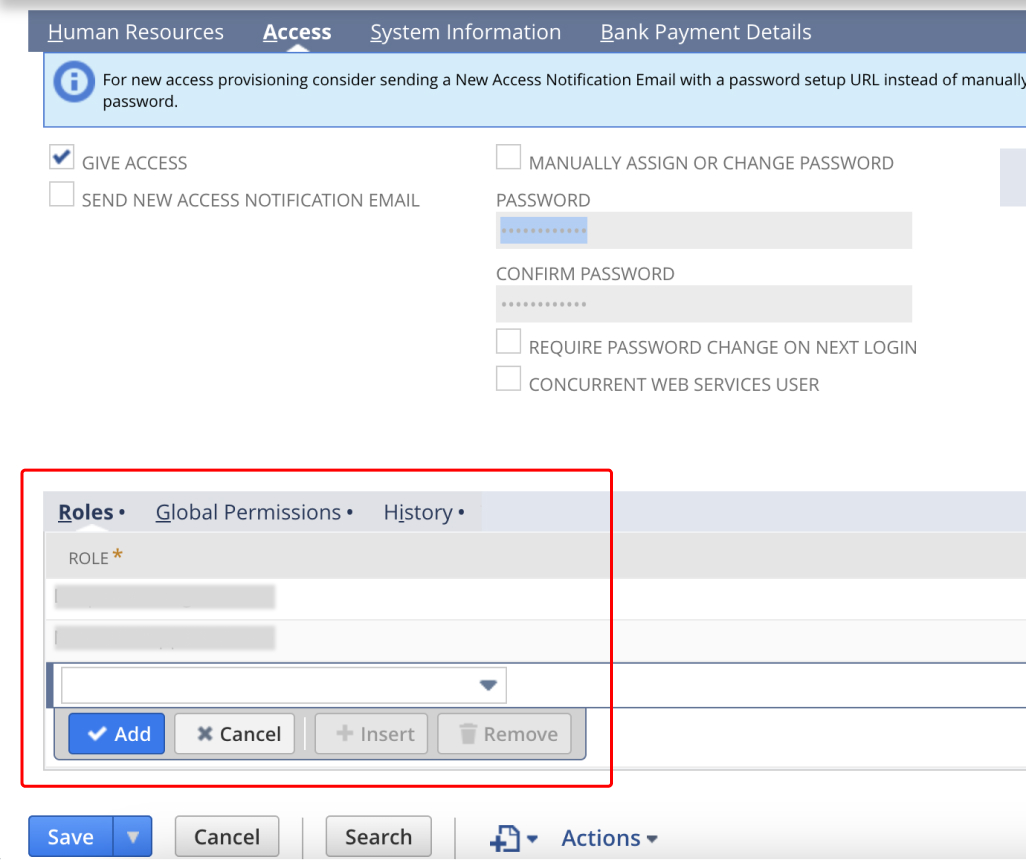
Step 1.6: Create Access Token for role (TBA only)
-
Go to Setup » Users/Roles » Access Tokens » New
-
Select an Application Name
-
Under User select the user you assigned the Role in the step 1.4
-
Inside Role select the one you gave to the user in the step 1.5
-
Under Token Name you can give a descriptive name to the Token you are creating
-
Save changes
-
After that, Token ID and Token Secret will be showed once, copy them
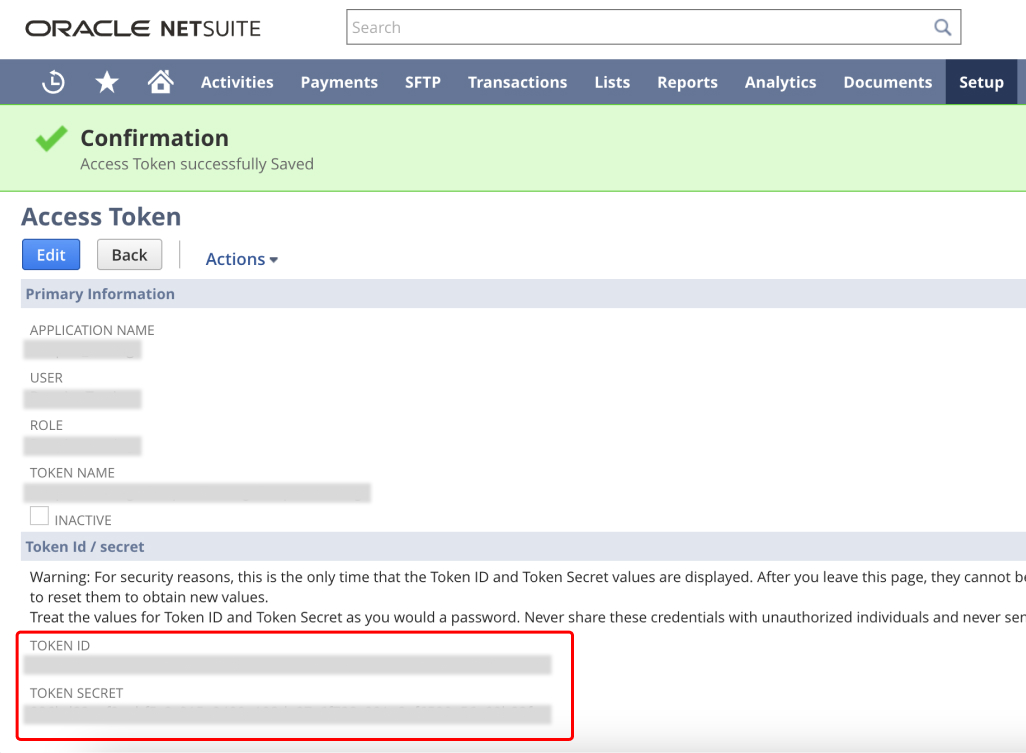
Step 1.7: Obtain default language for your company
-
Go to Setup » Setup Manager » Company » General Preference
-
Click on Languages tab
-
You will find the default lanaguge for your company here
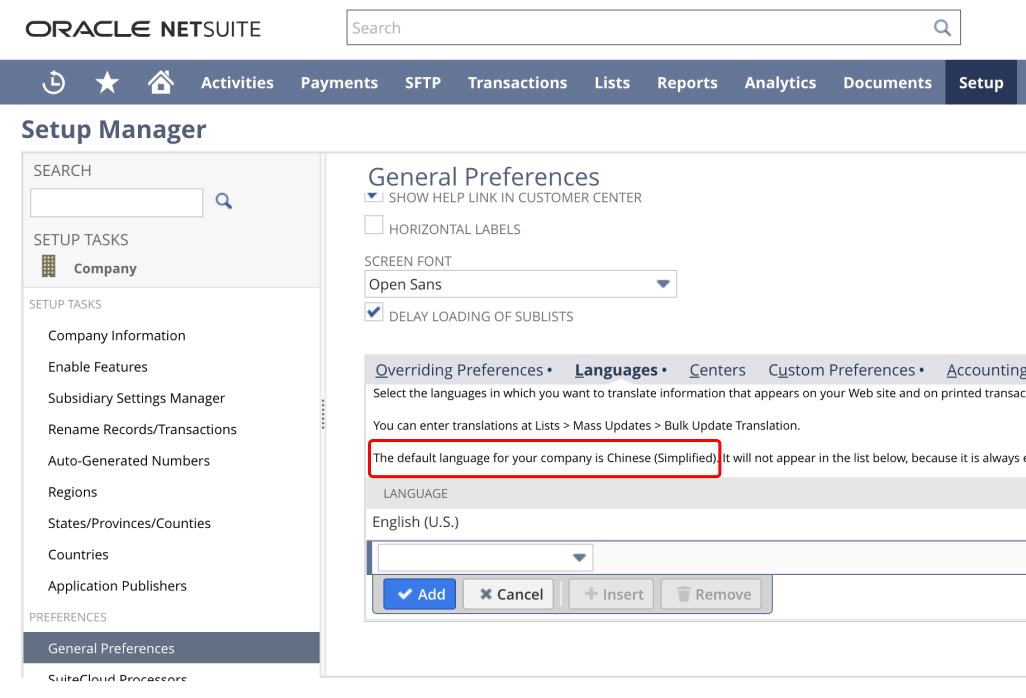
Step 1.8: Summary
You have obtained the following parameters:
- Realm (Account ID)
- OAuth 2.0 token details, or legacy TBA credentials
- Default language for your company
- Also you have properly Configured Account with Correct Permissions for the User and Role you've created early.
Step 2: Set up the source in Daspire
-
Go to Daspire dashboard.
-
In the left navigation bar, click Sources. In the top-right corner, click + new source.
-
On the source setup page, select NetSuite from the Source type dropdown and enter a name for this source.
-
Add Realm
-
Select Authentication. Use OAuth 2.0 for new connections, or Token-Based Authentication (Legacy) for existing TBA credentials.
-
For OAuth 2.0, click the OAuth authorization button. On first authentication, Daspire asks for that customer's NetSuite Client ID and Client Secret, saves them for the current workspace, opens the NetSuite authorization page, and then stores
access_token,refresh_token,client_id, andclient_secretunder the connector'scredentialsobject. If one-click OAuth is not available in your environment, add the OAuth 2.0 access token or refresh-token credentials manually. For TBA, add Consumer Key, Consumer Secret, Token ID, and Token Secret. -
Add Language
-
Add Object Types for REST Record Service streams, for example
customerorsalesorder. -
Add Start Date when Object Types is not empty.
-
Optionally add SuiteQL Queries. Each query needs a stream name and a read-only SuiteQL
SELECTquery. -
Click Save & Test
Supported sync modes
The NetSuite source connector supports the following sync modes:
- REST Record Service streams: Full Refresh and Incremental when the record metadata exposes a supported modified-date cursor.
- SuiteQL query streams: Full Refresh.
Supported Streams
- Record streams are generated from the configured Object Types and depend on ROLE and USER access as well as Account settings.
- SuiteQL streams are generated from the configured SuiteQL Queries. Use these for analytics-friendly joins, report-shaped extracts, and records that are easier to query through NetSuite's analytics data source.
Performance considerations
- The integration is restricted by Netsuite Concurrency Limit per Integration. Sync might stop or fail if Concurrency Limit is reached.
You can find your Concurrency Limit per Integration in Setup » Integration » Integration Goverance. Under Concurrency Usage you can view the account concurrency limit and the unallocated concurrency limit.
-
If sync fails due to concurrency limit, you can try resync to see if it works.
-
You can also contact NetSuite customer support to change your Concurrency Limits.
-
NetSuite REST SuiteQL queries can return a maximum of 100,000 results. For larger analytical extracts, evaluate SuiteAnalytics Connect with the NetSuite2.com data source. SuiteAnalytics Connect uses ODBC, JDBC, or ADO.NET drivers and is separate from this REST source connector.
Troubleshooting
Max number of tables that can be synced at a time is 6,000. We advise you to adjust your settings if it fails to fetch schema due to max number of tables reached.
OAuth one-click redirect notes
- NetSuite's authorization endpoint is account-specific:
https://<accountID>.app.netsuite.com/app/login/oauth2/authorize.nl. Daspire normalizes sandbox realms such as1234567_SB1to the URL subdomain1234567-sb1. - The token endpoint is
https://<accountID>.suitetalk.api.netsuite.com/services/rest/auth/oauth2/v1/tokenand uses HTTP Basic authentication with the NetSuite OAuth client ID and client secret. - Daspire stores NetSuite OAuth app credentials per workspace/customer, not globally for the whole deployment. This prevents one customer's NetSuite Client ID and Client Secret from being reused for another customer.
- Daspire's one-click NetSuite OAuth flow is an authorization code flow with HTTP Basic client authentication and PKCE S256. The browser generates the code verifier/challenge during OAuth start; users should not enter PKCE values manually.
- Do not use the
mcpscope for this REST source connector. - Daspire's shared OAuth callback is
/auth_flowon the public app host. If NetSuite returnsinvalid_redirect_uri, update the NetSuite integration record so its redirect URI exactly matches the Daspire environment. - If the OAuth button is not visible, confirm that the NetSuite source is configured for Daspire-managed OAuth, the OAuth connector feature flag is enabled, and Authentication is set to OAuth 2.0.
- If the popup fails before opening NetSuite, confirm that the first-time setup modal saved the workspace OAuth configuration successfully and that the current user is a workspace owner or administrator. The production source definition ID in this repository is
4f2f093d-ce44-4121-8118-9d13b7bfccd0. - NetSuite authorization-code refresh tokens are time-limited. If a saved refresh token expires, reconnect through OAuth.