Microsoft Teams
This page contains the setup guide and reference information for Microsoft Teams.
Features
| Feature | Supported? |
|---|---|
| Full Refresh Sync | Yes |
| Incremental Sync | No |
| SSL connection | Yes |
| Namespaces | No |
Prerequisites
- An Azure account that has an active subscription
- Application (client) ID
- Directory (tenant) ID
- Client secrets
The Microsoft Graph API uses OAuth for authentication. Microsoft Graph exposes granular permissions that control the access that apps have to resources, like users, groups, and mail. When a user signs in to your app they, or, in some cases, an administrator, are given a chance to consent to these permissions. If the user consents, your app is given access to the resources and APIs that it has requested. For apps that don't take a signed-in user, permissions can be pre-consented to by an administrator when the app is installed.
Microsoft Graph has two types of permissions:
-
Delegated permissions are used by apps that have a signed-in user present. For these apps, either the user or an administrator consents to the permissions that the app requests, and the app can act as the signed-in user when making calls to Microsoft Graph. Some delegated permissions can be consented by non-administrative users, but some higher-privileged permissions require administrator consent.
-
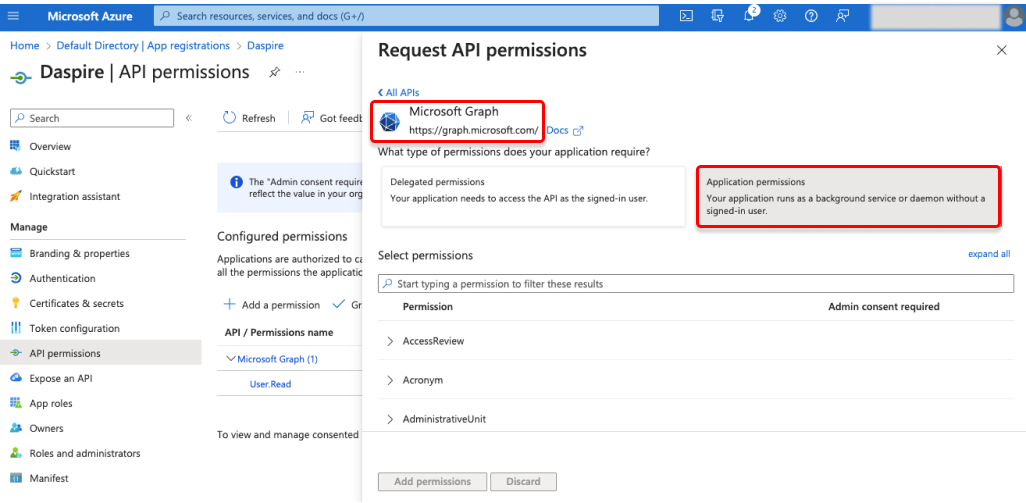
Application permissions are used by apps that run without a signed-in user present; for example, apps that run as background services or daemons. Application permissions can only be consented by an administrator. This source requires Application permissions.
Setup guide
Step 1: Obtain Microsoft Teams crendentials
Follow these instructions or the below steps for creating an app in the Azure portal. This process will produce the client_id, client_secret, and tenant_id needed to set up the source in Daspire.
-
Login to Azure Portal.
-
Select Microsoft Entra ID from list Azure services, or search for it in the search bar.

-
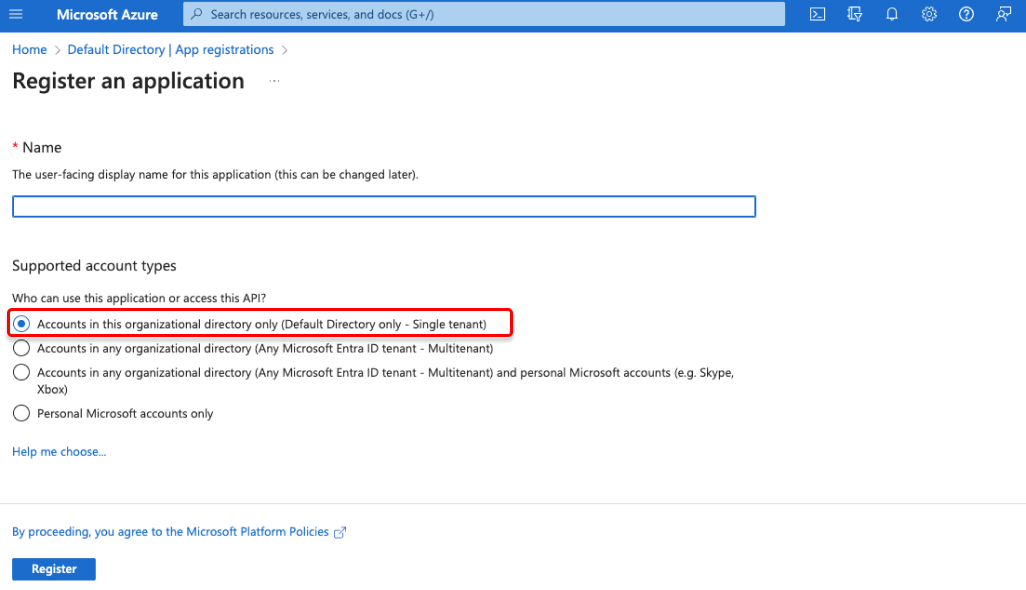
On the left side nav bar, click App registrations, and click click the New registration tab.

-
Register an application. Enter a name for your app, and in Supported account types, select Accounts in this organizational directory only. Cick the Register button.
-
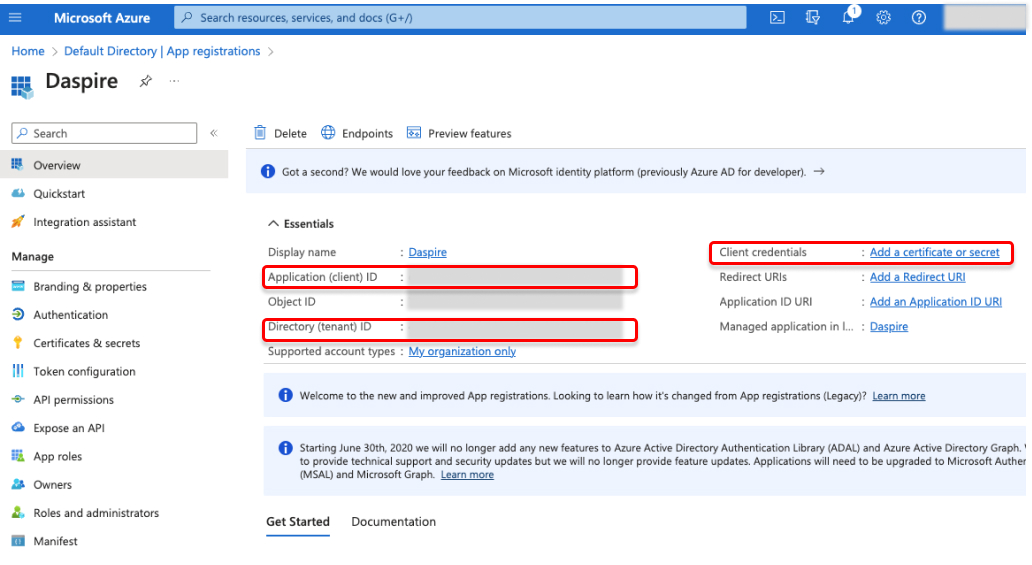
You will be directed to your App's Overview page. From there, copy the Application (client) ID and Directory (tenant) ID. You will use them later for authentication in Daspire.
-
Click Add a certificate or secret, which will open the Certificates & secrets page.
-
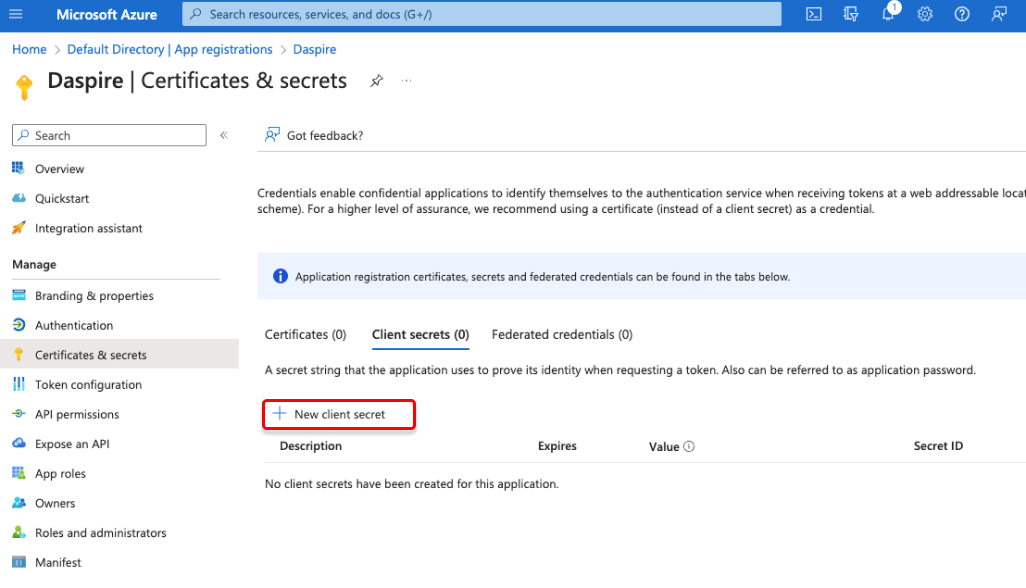
Click + New client secret. In the opened pop up, provide a description for the client secret and select the expirary duration that suits your need. Then click Add.
-
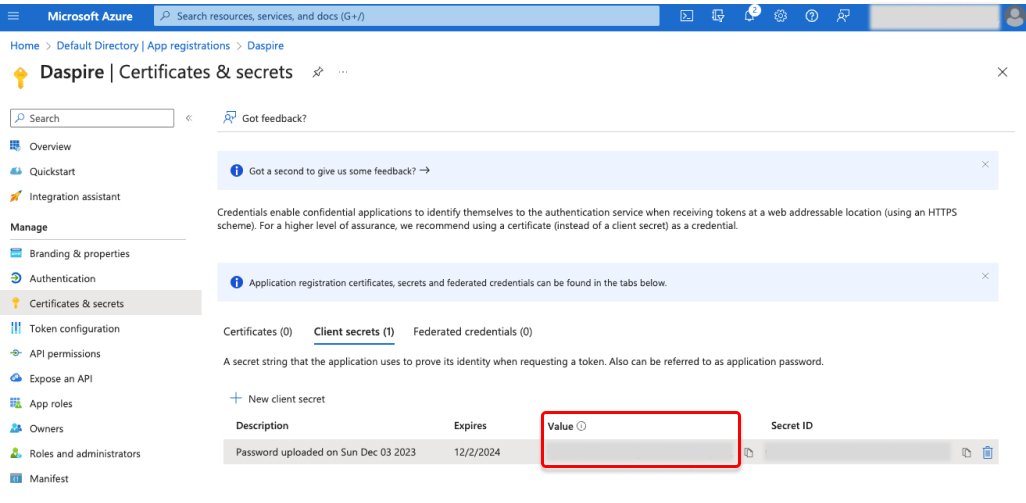
Copy the client secret Value. You will use it later for authentication in Daspire.
-
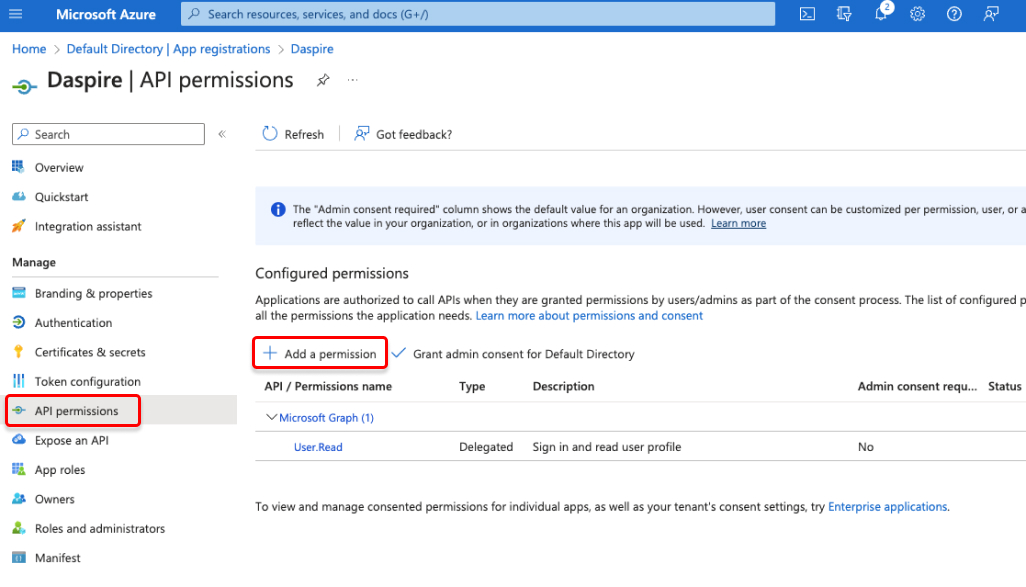
On the left side nav bar, click API permissions, then Add a permission.
-
Select Microsoft Graph, then select Application permissions.

-
Select the following permissions:
-
Channels
- Channel.ReadBasic.All
-
ChannelMembers
- ChannelMember.Read.All
- ChannelMember.ReadWrite.All
-
ChannelMessage
- ChannelMessage.Read.All
-
Chat
- Chat.Read.All
- Chat.ReadBasic.All
- Chat.ReadWrite.All
-
ChatMember
- ChatMember.Read.All
- ChatMember.ReadWrite.All
-
ChatMessage
- ChatMessage.Read.All
-
Files
- Files.Read.All
- Files.ReadWrite.All
-
Groups
- Group.Read.All
- Group.ReadWrite.All
-
GroupMembers
- GroupMember.Read.All
- GroupMember.ReadWrite.All
-
TeamsActivity
- TeamsActivity.Read.All
-
TeamMember
- TeamMember.Read.All
- TeamMember.ReadWrite.All
-
TeamTabs
- TeamsTab.Read.All
- TeamsTab.ReadWrite.All
- TeamsTab.ReadWriteForTeam.All
-
Team
- Team.ReadBasic.All
-
TeamworkDevice
- TeamworkDevice.Read.All
- TeamworkDevice.ReadWrite.All
-
Users
- User.Read.All
- User.ReadWrite.All
- Once you're done, click Add permissions.
Step 2: Set up Microsoft Teams in Daspire
-
Select Microsoft Teams from the Source list.
-
Enter a Source Name.
-
Enter Application (client) ID, Directory (tenant) ID, and Client secrets you obtained in Step 1.
-
Click Save & Test.
Supported streams
This source is capable of syncing the following streams:
- channels
- channel_members
- channel_tabs
- conversations
- conversation_threads
- conversation_posts
- groups
- group_members
- group_owners
- team_drives
- team_device_usage_report
- users
Data type mapping
| Integration Type | Daspire Type |
|---|---|
string | string |
number | number |
array | array |
object | object |
Troubleshooting
-
Rate limit: This integration is restricted by normal Microsoft Graph requests limitation.
-
Max number of tables that can be synced at a time is 6,000. We advise you to adjust your settings if it fails to fetch schema due to max number of tables reached.