Zoho Desk
Overview
The Zoho Desk Connector allows you to sync data from Zoho Desk from different modules such as Tickets, Contacts, Accounts and so on. Into your preferred destination, allowing you to automate various tasks such as performance scoring for customer service departments. This guide will help you configure and use the connector.
Prerequisites
- A Zoho Desk account with administrative access
Configuration Steps
Authentication
- Select the Zoho Desk data center region for your account.
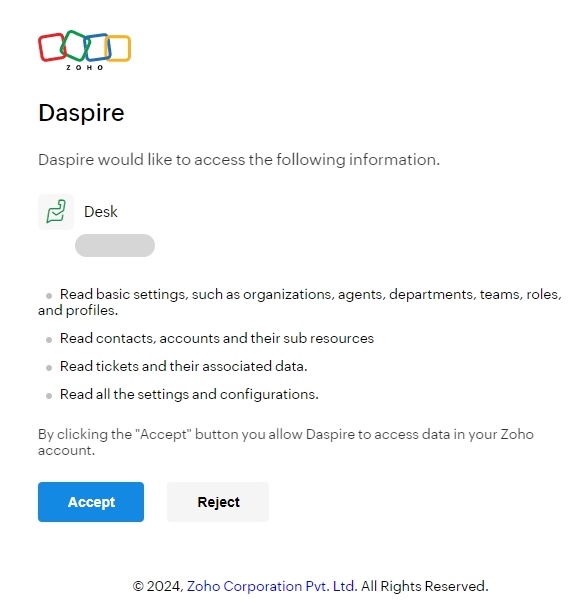
- Click on the "Authenticate with Zoho Desk" button.
- You'll be redirected to Zoho Desk to authorize the connection.
- Log in to your Zoho Desk account and grant the necessary permissions.
- Once authorized, you'll be redirected back to Daspire.
Configure Connector Settings
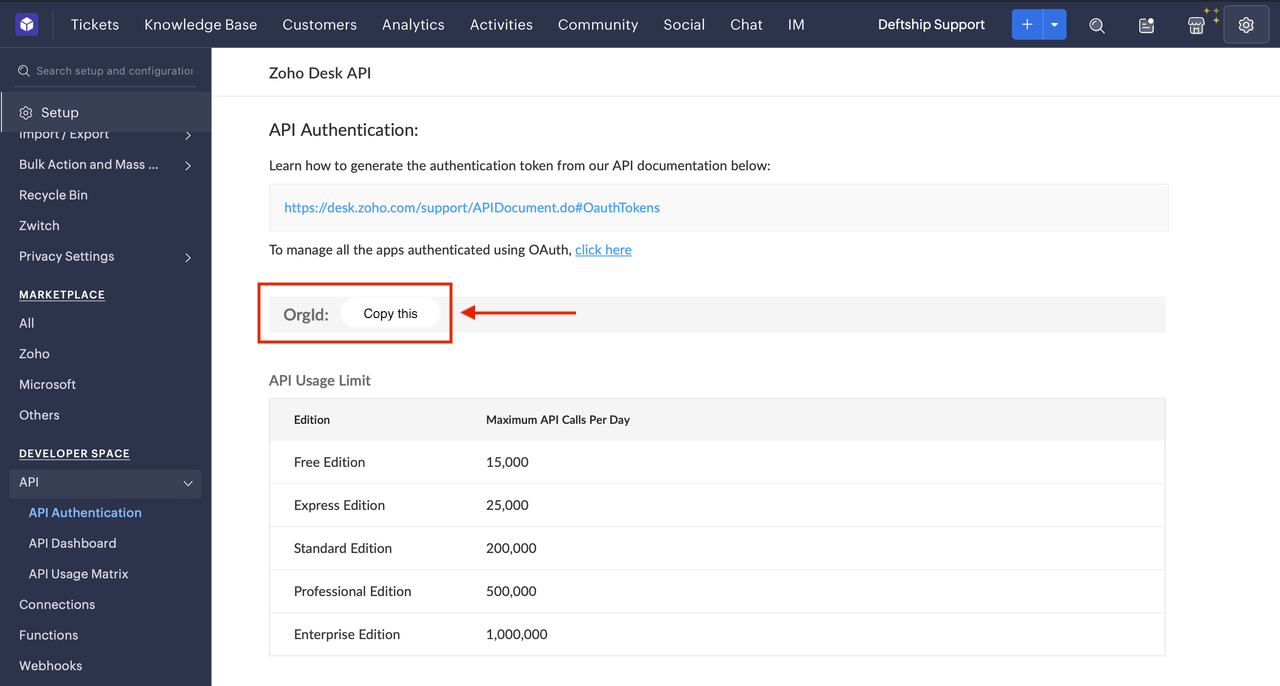
- Organization ID: The Organization ID is the identifier of the organization to access. Once authorized, choose one of the Organization IDs returned by Zoho Desk. You can also find your Organization ID:
- In Zoho Desk, go to Setup > Developer Space > API
- Copy the Organization ID (OrgID) displayed there
- Dashboard date range: Optionally set a start and end date for dashboard metric streams. When both dates are set, Daspire syncs the complete historical reporting period and automatically splits requests into API-sized chunks when needed. When no end date is set, dashboard metric streams use a rolling 30-day lookback bounded by the start date.
Supported Data Streams
The Zoho Desk connector can sync the following types of data:
- Agents: Customer service executives in your organization who interact with contacts and resolve tickets.
- Tickets: Organizing units for customer enquiries, requests, complaints, and other interactions.
- Contacts: End-customers who raise requests or make enquiries/complaints with your customer service team.
- Accounts: Account refers to customer organizations that use your products or services. An account can have multiple contacts.
- Tickets Resolution Time: Dashboard metric grouped by agent.
- Response Time: Dashboard metric grouped by agent.
Supported Sync Modes
Choose the sync mode that best fits your use case:
- Full Refresh, Overwrite: Replaces all existing data in the destination.
- Full Refresh, Append: Adds all data from the source to the destination without deleting existing data.
Troubleshooting
If you encounter any issues:
- Ensure your Zoho Desk account has the necessary permissions.
- Check that your Organization ID is entered correctly.
- Review Daspire logs for any error messages.
- For persistent errors, contact Daspire support.