Snowflake
This page contains the setup guide and reference information for Snowflake.
Setting up Snowflake as a destination involves setting up Snowflake entities (warehouse, database, schema, user, and role) in the Snowflake console, setting up the data loading method (internal stage, AWS S3, Google Cloud Storage bucket, or Azure Blob Storage), and configuring the Snowflake destination inside Daspire.
This page describes the step-by-step process of setting up Snowflake as a destination.
Prerequisites
-
A Snowflake account with the ACCOUNTADMIN role. If you don't have an account with the ACCOUNTADMIN role, contact your Snowflake administrator to set one up for you.
-
(Optional) An AWS, Google Cloud Storage, or Azure account.
Network policies
By default, Snowflake allows users to connect to the service from any computer or device IP address. A security administrator (i.e. users with the SECURITYADMIN role) or higher can create a network policy to allow or deny access to a single IP address or a list of addresses.
If you have any issues connecting with Daspire, please make sure that the list of IP addresses is on the allowed list.
From the command line
To determine whether a network policy is set on your account or for a specific user, execute the SHOW PARAMETERS command.
Account
SHOW PARAMETERS LIKE 'network_policy' IN ACCOUNT;
User
SHOW PARAMETERS LIKE 'network_policy' IN USER <username>;
To read more please check official Snowflake documentation
From the UI
You can do so by going to Admin -> Security from the sidebar. You can check existing Network Policies in your account.
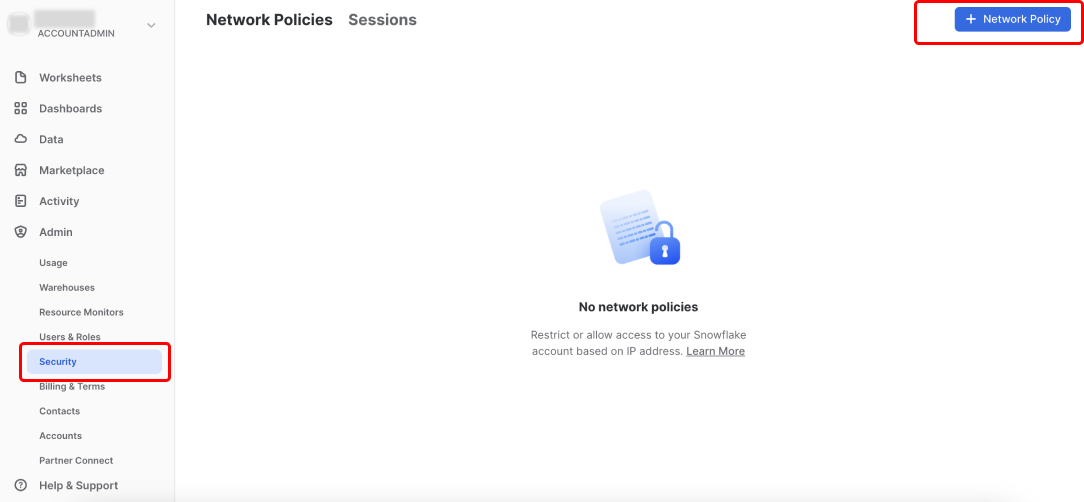
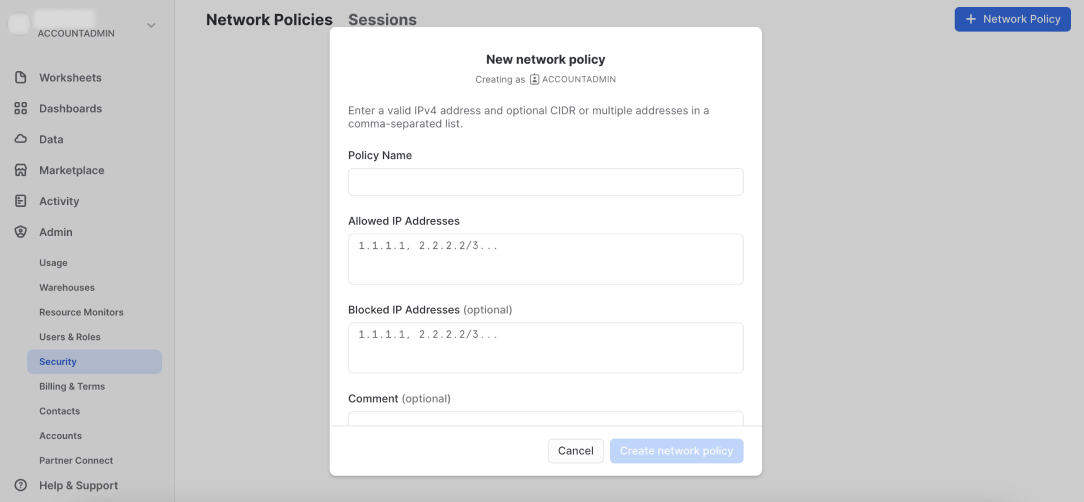
To add a new network policy, click + Network Policy, add your policy name, allowed and/or blocked IP addresses.
Setup guide
Step 1: Set up Daspire-specific entities in Snowflake
To set up the Snowflake destination connector, you first need to create Daspire-specific Snowflake entities (a warehouse, database, schema, user, and role) with the OWNERSHIP permission to write data into Snowflake, track costs pertaining to Daspire, and control permissions at a granular level.
From the command line
You can use the following script in a new Snowflake worksheet to create the entities:
-
Edit the following script to change the password to a more secure password and to change the names of other resources if you so desire.
Note: Make sure you follow the Snowflake identifier requirements while renaming the resources.
 set variables (these need to be uppercase)
 set daspire_role = 'DASPIRE_ROLE';
 set daspire_username = 'DASPIRE_USER';
 set daspire_warehouse = 'DASPIRE_WAREHOUSE';
 set daspire_database = 'DASPIRE_DATABASE';
 set daspire_schema = 'DASPIRE_SCHEMA';

 -- set user password
 set daspire_password = 'password';

 begin;

 -- create Daspire role
 use role securityadmin;
 create role if not exists identifier($daspire_role);
 grant role identifier($daspire_role) to role SYSADMIN;

 -- create Daspire user
 create user if not exists identifier($daspire_username)
 password = $daspire_password
 default_role = $daspire_role
 default_warehouse = $daspire_warehouse;

 grant role identifier($daspire_role) to user identifier($daspire_username);

 -- change role to sysadmin for warehouse / database steps
 use role sysadmin;

 -- create Daspire warehouse
 create warehouse if not exists identifier($daspire_warehouse)
 warehouse_size = xsmall
 warehouse_type = standard
 auto_suspend = 60
 auto_resume = true
 initially_suspended = true;

 -- create Daspire database
 create database if not exists identifier($daspire_database);

 -- grant Daspire warehouse access
 grant USAGE
 on warehouse identifier($daspire_warehouse)
 to role identifier($daspire_role);

 -- grant Daspire database access
 grant OWNERSHIP
 on database identifier($daspire_database)
 to role identifier($daspire_role);

 commit;

 begin;

 USE DATABASE identifier($daspire_database);

 -- create schema for Daspire data
 CREATE SCHEMA IF NOT EXISTS identifier($daspire_schema);

 commit;

 begin;

 -- grant Daspire schema access
 grant OWNERSHIP
 on schema identifier($daspire_schema)
 to role identifier($daspire_role);

 commit;
- Run the script using the Worksheet page or Snowlight. Make sure to select the All Queries checkbox.
From the UI
1. Create a Daspire role
From the side menu, click Admin -> Users & Roles. Click the Roles tab, and then click + Role.
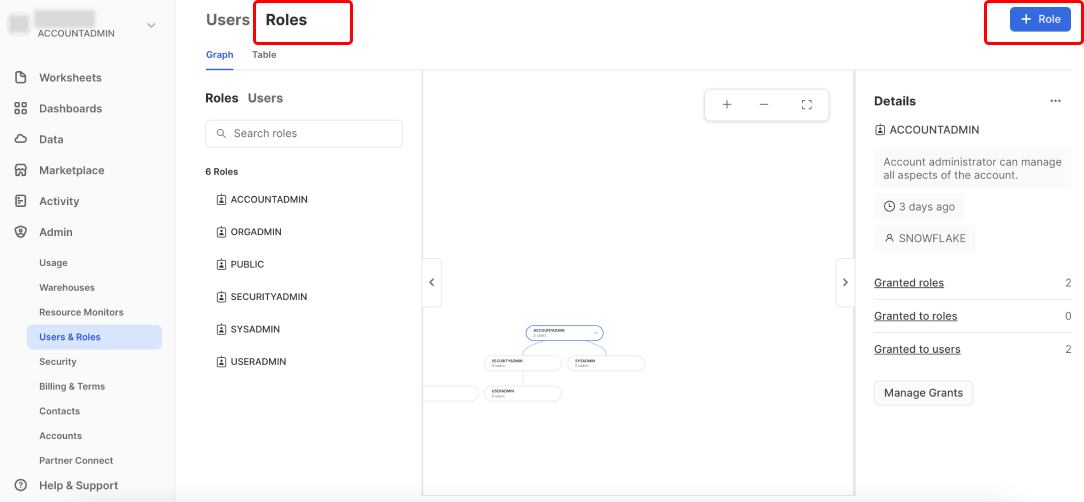
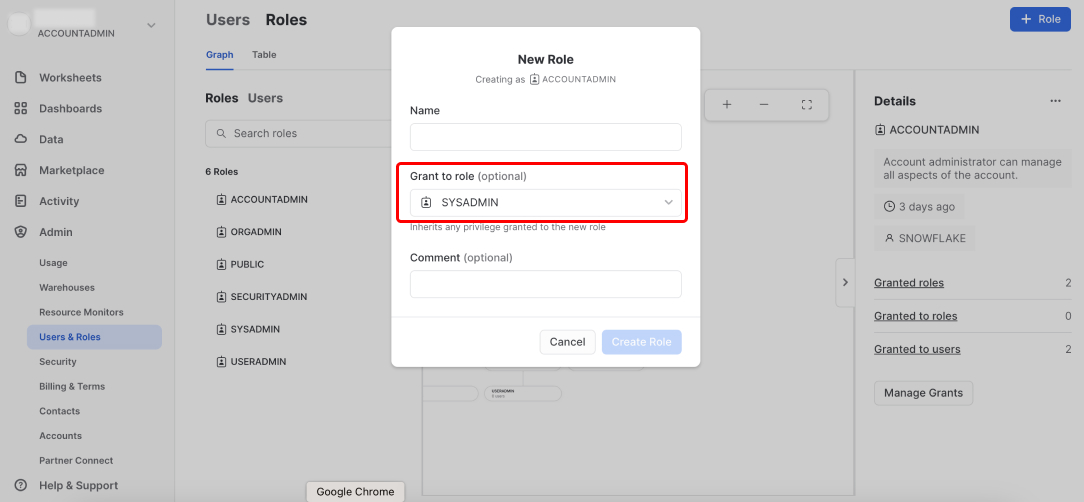
Enter a name for the role, for example, DASPIRE_ROLE, and grant SYSADMIN access to the role.
2. Create a Daspire user
Once your Daspire role is created, switch to the Users tab, and then click + User.
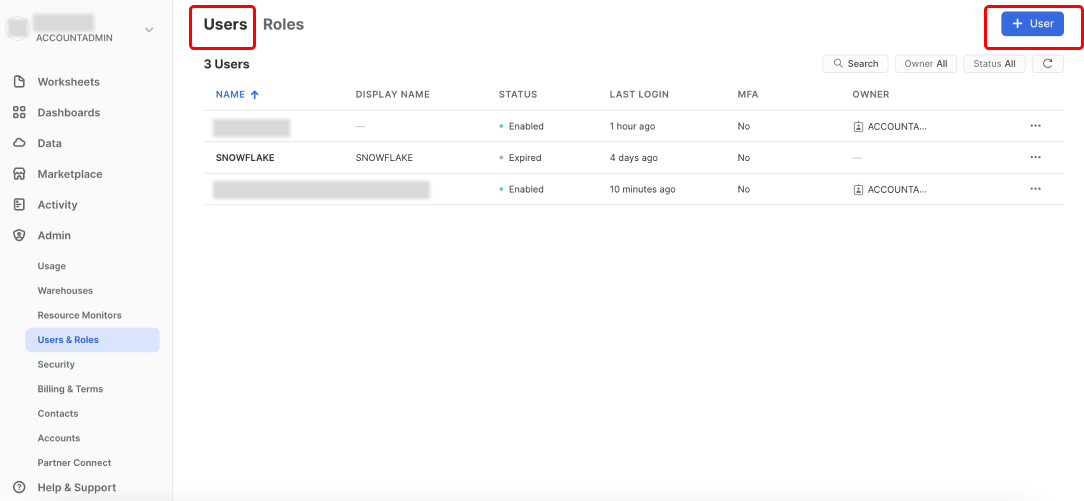
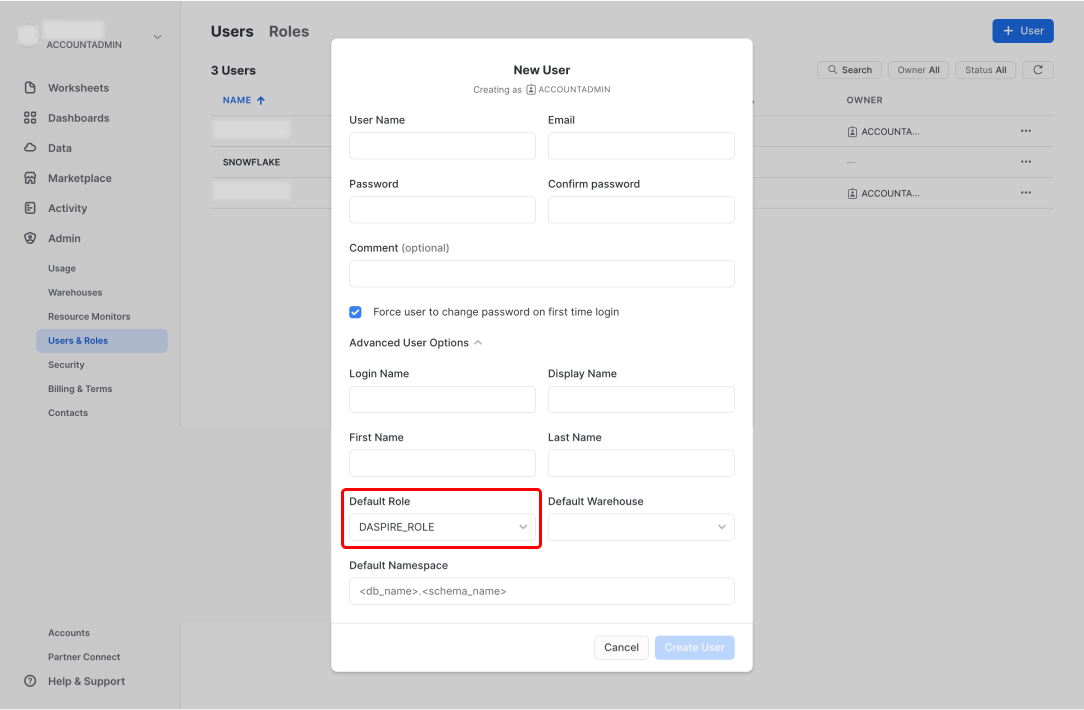
Enter a user name for the user, for example, DASPIRE_USER. Enter other details, and assign the role you created in step 1, for example, DASPIRE_ROLE to the user.
3. Create a Daspire warehouse
From the side menu, click Admin -> Warehouses, and then click + Warehouse.
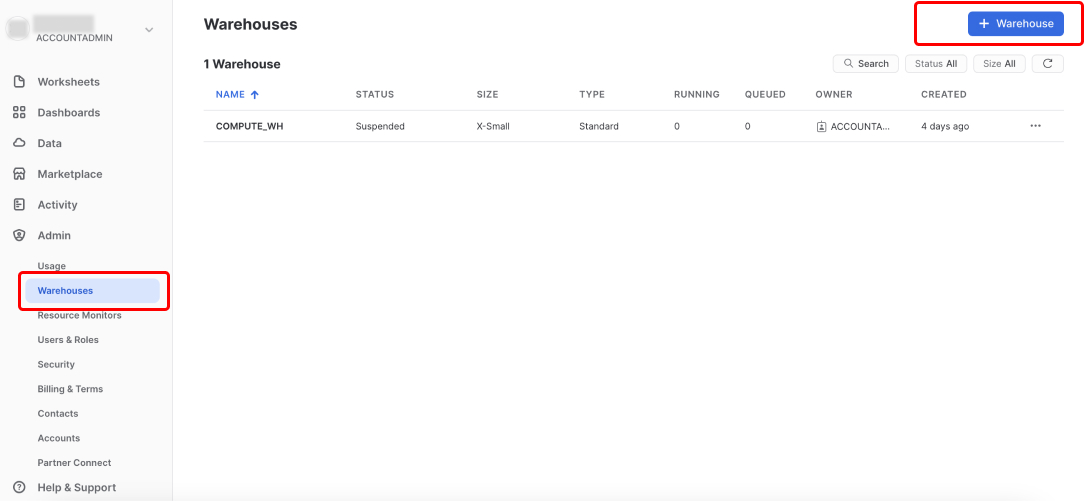
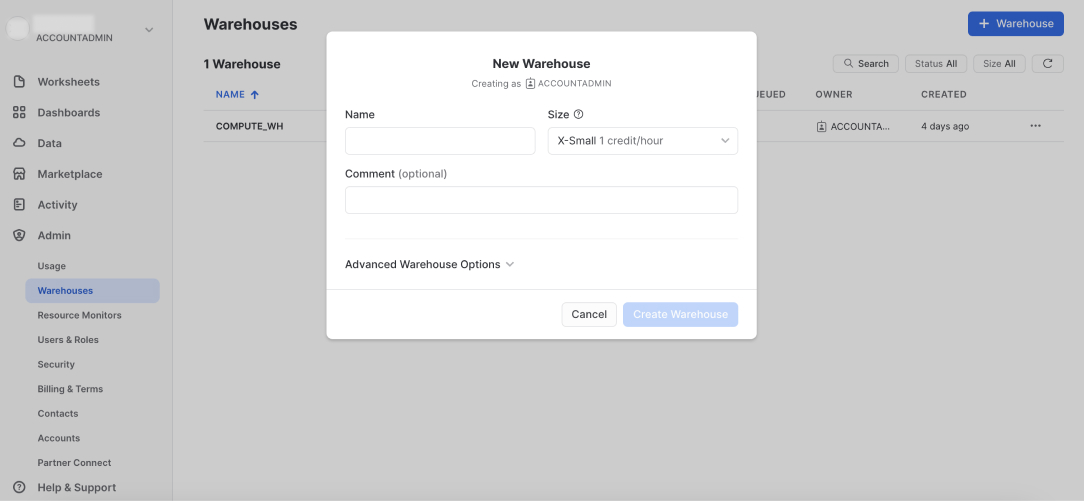
Enter a name for the warehouse, for example, DASPIRE_WAREHOUSE, and select the relevant size for the warehouse.
4. Grant Daspire warehouse access
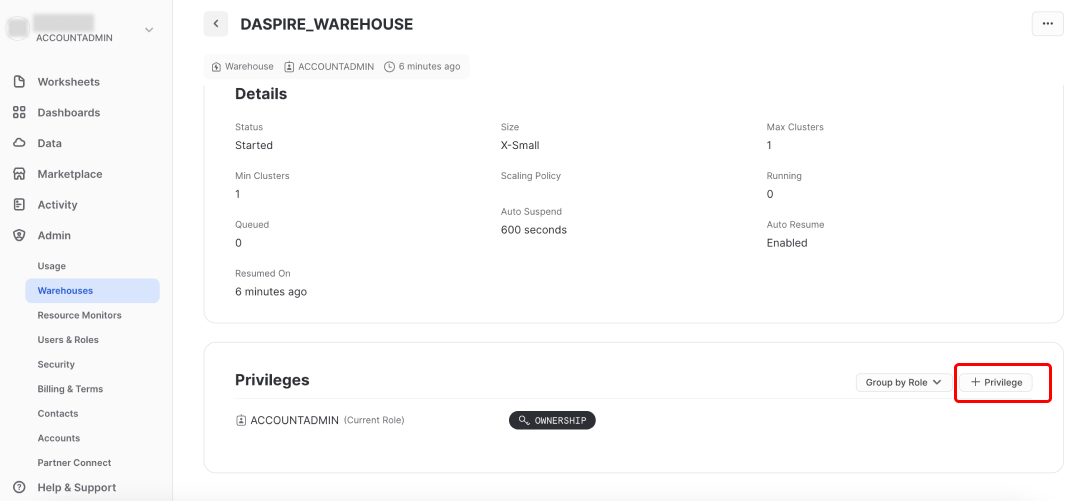
Once your Daspire warehouse is created, click it, and scroll down to the Privileges section. Then click + Privilege.
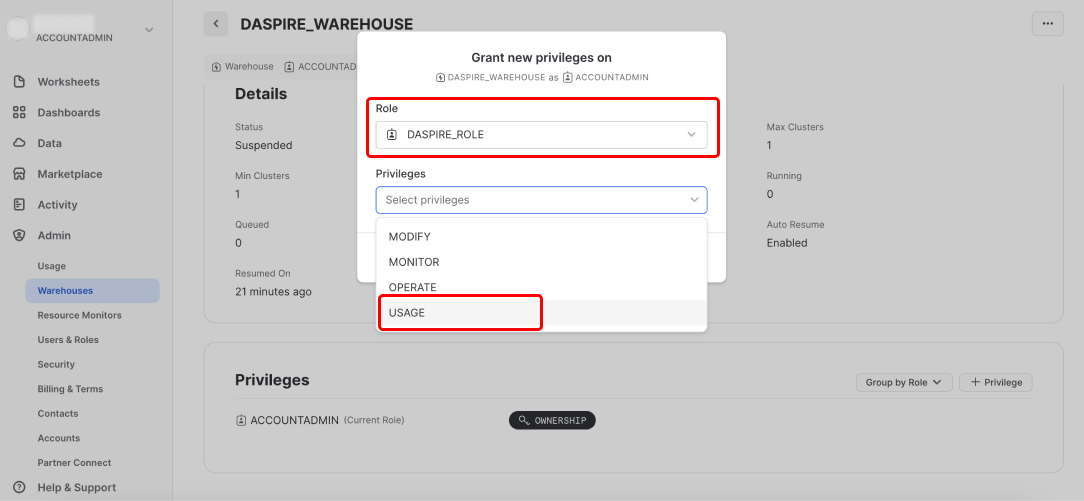
Select the Daspire role you created in step 1, then in the Privileges dropdown, select USAGE, and then click Grant Privilege.
5. Create a Daspire database
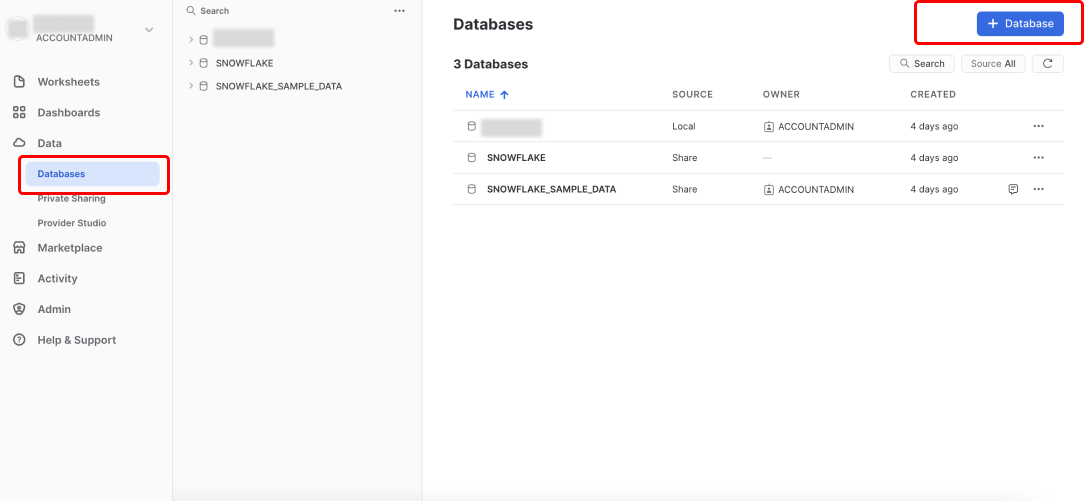
From the side menu, click Data -> Databases, and then click + Database.
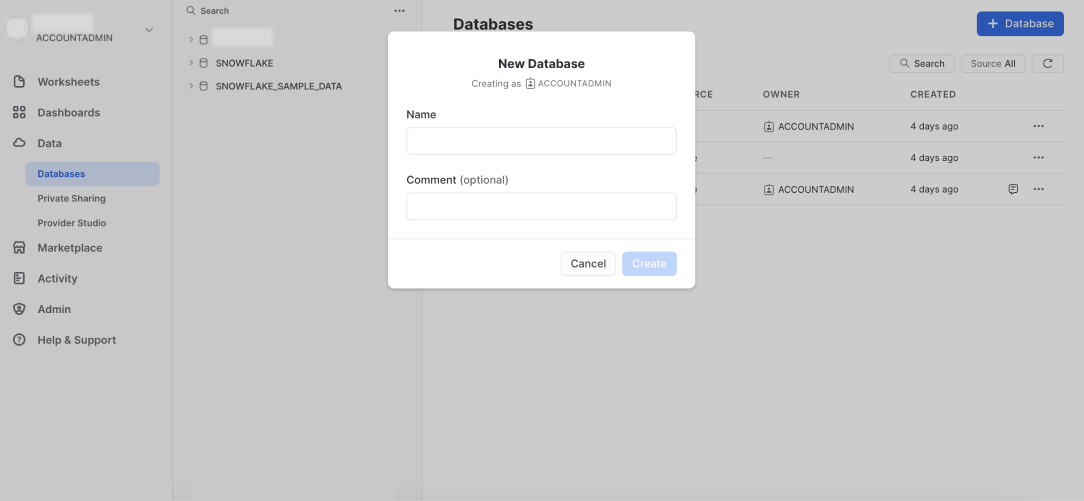
Enter a name for the database, for example, DASPIRE_DATABASE, and create the database.
6. Grant Daspire database access
Once your Daspire database is created, click it, and then click + Privilege.
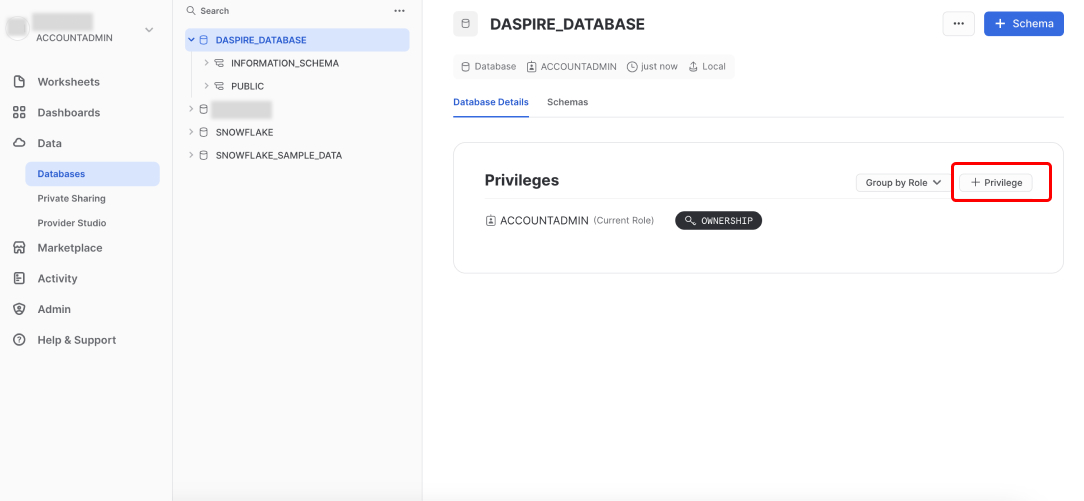
Select the Daspire role you created in step 1, then in the Privileges dropdown, select OWNERSHIP, and then click Grant Privilege.
7. Create a Daspire schema
Inside your Daspire database, click + Schema.
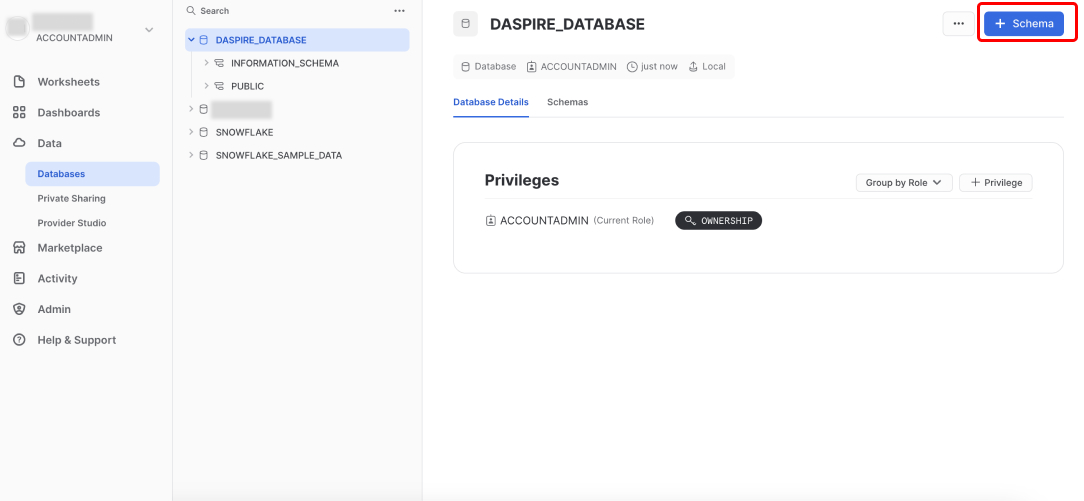
Enter a name for the database schema, for example, DASPIRE_SCHEMA, and create the schema.
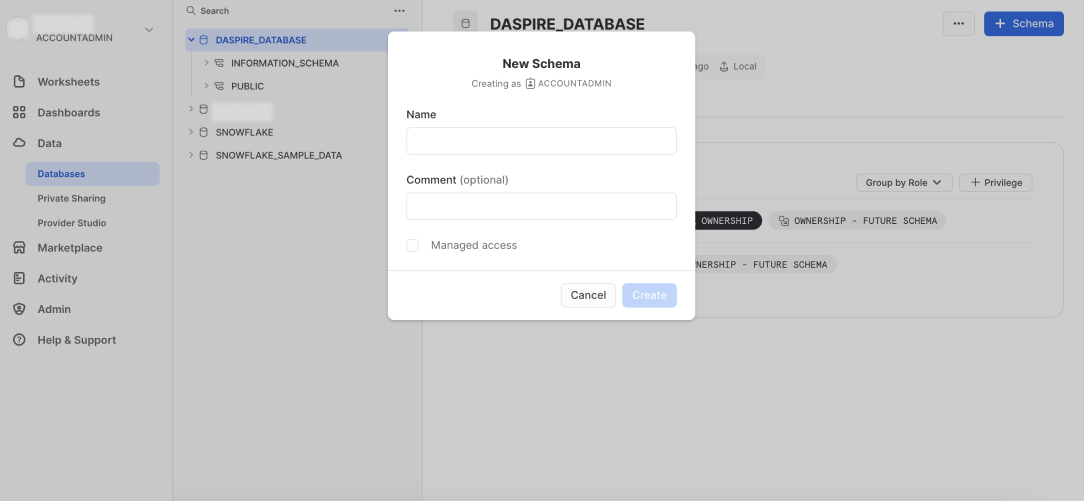
8. Summary
You have obtained all the details and correct permissions to set up Snowflake in Daspire.
Step 2: Set up a data loading method
By default, Daspire uses Snowflake's Internal Stage to load data. You can also load data using an Amazon S3 bucket, a Google Cloud Storage bucket, or Azure Blob Storage.
Make sure the database and schema have the USAGE privilege.
Using an Amazon S3 bucket
To use an Amazon S3 bucket, create a new Amazon S3 bucket with read/write access for Daspire to stage data to Snowflake.
Using a Google Cloud Storage bucket
To use a Google Cloud Storage bucket:
-
Navigate to the Google Cloud Console and create a new bucket with read/write access for Daspire to stage data to Snowflake.
-
Generate a JSON key for your service account.
-
Edit the following script to replace DASPIRE_ROLE with the role you used for Daspire's Snowflake configuration and YOURBUCKETNAME with your bucket name.
 create storage INTEGRATION gcs_daspire_integration
 TYPE = EXTERNAL_STAGE
 STORAGE_PROVIDER = GCS
 ENABLED = TRUE
 STORAGE_ALLOWED_LOCATIONS = ('gcs://YOURBUCKETNAME');

 create stage gcs_daspire_stage
 url = 'gcs://YOURBUCKETNAME'
 storage_integration = gcs_daspire_integration;

 GRANT USAGE ON integration gcs_daspire_integration TO ROLE DASPIRE_ROLE;
 GRANT USAGE ON stage gcs_daspire_stage TO ROLE DASPIRE_ROLE;

 DESC STORAGE INTEGRATION gcs_daspire_integration;
-
The final query should show a
STORAGE_GCP_SERVICE_ACCOUNTproperty with an email as the property value. Add read/write permissions to your bucket with that email. -
Navigate to the Snowflake UI and run the script as a Snowflake account admin using the Worksheet page or Snowlight.
Using Azure Blob Storage
To use Azure Blob Storage, create a storage account and container, and provide a SAS Token to access the container. We recommend creating a dedicated container for Daspire to stage data to Snowflake. Daspire needs read/write access to interact with this container.
Step 3: Set up Snowflake as a destination in Daspire
Navigate to the Daspire to set up Snowflake as a destination. You can authenticate using username/password or OAuth 2.0:
Username and Password
| Field | Description |
|---|---|
| Host | The host domain of the snowflake instance (must include the account, region, cloud environment, and end with snowflakecomputing.com). Example: accountname.us-east-2.aws.snowflakecomputing.com |
| Role | The role you created in Step 1 for Daspire to access Snowflake. Example: DASPIRE_ROLE |
| Warehouse | The warehouse you created in Step 1 for Daspire to sync data into. Example: DASPIRE_WAREHOUSE |
| Database | The database you created in Step 1 for Daspire to sync data into. Example: DASPIRE_DATABASE |
| Schema | The default schema used as the target schema for all statements issued from the connection that do not explicitly specify a schema name. |
| Username | The username you created in Step 1 to allow Daspire to access the database. Example: DASPIRE_USER |
| Password | The password associated with the username. |
| JDBC URL Params (optional) | Additional properties to pass to the JDBC URL string when connecting to the database formatted as key=value pairs separated by the symbol &. Example: key1=value1&key2=value2&key3=value3 |
OAuth 2.0
| Field | Description |
|---|---|
| Host | The host domain of the snowflake instance (must include the account, region, cloud environment, and end with snowflakecomputing.com). Example: accountname.us-east-2.aws.snowflakecomputing.com |
| Role | The role you created in Step 1 for Daspire to access Snowflake. Example: DASPIRE_ROLE |
| Warehouse | The warehouse you created in Step 1 for Daspire to sync data into. Example: DASPIRE_WAREHOUSE |
| Database | The database you created in Step 1 for Daspire to sync data into. Example: DASPIRE_DATABASE |
| Schema | The default schema used as the target schema for all statements issued from the connection that do not explicitly specify a schema name. |
| Username | The username you created in Step 1 to allow Daspire to access the database. Example: DASPIRE_USER |
| OAuth2 | The Login name and password to obtain auth token. |
| JDBC URL Params (optional) | Additional properties to pass to the JDBC URL string when connecting to the database formatted as key=value pairs separated by the symbol &. Example: key1=value1&key2=value2&key3=value3 |
Key pair authentication
 In order to configure key pair authentication you will need a private/public key pair.
 If you do not have the key pair yet, you can generate one using openssl command line tool
 Use this command in order to generate an unencrypted private key file:

 `openssl genrsa 2048 | openssl pkcs8 -topk8 -inform PEM -out rsa_key.p8 -nocrypt`

 Alternatively, use this command to generate an encrypted private key file:

 `openssl genrsa 2048 | openssl pkcs8 -topk8 -inform PEM -v1 PBE-SHA1-RC4-128 -out rsa_key.p8`

 Once you have your private key, you need to generate a matching public key.
 You can do so with the following command:

 `openssl rsa -in rsa_key.p8 -pubout -out rsa_key.pub`

 Finally, you need to add the public key to your Snowflake user account.
 You can do so with the following SQL command in Snowflake:

 `alter user <user_name> set rsa_public_key=<public_key_value>;`

 and replace <user_name> with your user name and <public_key_value> with your public key.
To use AWS S3 as the cloud storage, enter the information for the S3 bucket you created in Step 2:
| Field | Description |
|---|---|
| S3 Bucket Name | The name of the staging S3 bucket (Example: daspire.staging). Daspire will write files to this bucket and read them via statements on Snowflake. |
| S3 Bucket Region | The S3 staging bucket region used. |
| S3 Key Id * | The Access Key ID granting access to the S3 staging bucket. Daspire requires Read and Write permissions for the bucket. |
| S3 Access Key * | The corresponding secret to the S3 Key ID. |
| Stream Part Size (optional) | Increase this if syncing tables larger than 100GB. Files are streamed to S3 in parts. This determines the size of each part, in MBs. As S3 has a limit of 10,000 parts per file, part size affects the table size. This is 10MB by default, resulting in a default limit of 100GB tables. Note, a larger part size will result in larger memory requirements. A rule of thumb is to multiply the part size by 10 to get the memory requirement. Modify this with care. (e.g. 5) |
| Purge Staging Files and Tables | Determines whether to delete the staging files from S3 after completing the sync. Specifically, the connector will create CSV files named bucketPath/namespace/streamName/syncDate_epochMillis_randomUuid.csv containing three columns (ab_id, data, emitted_at). Normally these files are deleted after sync; if you want to keep them for other purposes, set purge_staging_data to false. |
| Encryption | Whether files on S3 are encrypted. You probably don't need to enable this, but it can provide an additional layer of security if you are sharing your data storage with other applications. If you do use encryption, you must choose between ephemeral keys (Daspire will automatically generate a new key for each sync, and nobody but Daspire and Snowflake will be able to read the data on S3) or providing your own key (if you have the "Purge staging files and tables" option disabled, and you want to be able to decrypt the data yourself) |
| S3 Filename pattern (optional) | The pattern allows you to set the file-name format for the S3 staging file(s), next placeholders combinations are currently supported: {date}, {date:yyyy_MM}, {timestamp}, {timestamp:millis}, {timestamp:micros}, {part_number}, {sync_id}, {format_extension}. Please, don't use empty space and not supportable placeholders, as they won't recognized. |
To use a Google Cloud Storage bucket, enter the information for the bucket you created in Step 2:
| Field | Description |
|---|---|
| GCP Project ID | The name of the GCP project ID for your credentials. (Example: my-project) |
| GCP Bucket Name | The name of the staging bucket. Daspire will write files to this bucket and read them via statements on Snowflake. (Example: daspire-staging) |
| Google Application Credentials | The contents of the JSON key file that has read/write permissions to the staging GCS bucket. You will separately need to grant bucket access to your Snowflake GCP service account. See the Google Cloud docs for more information on how to generate a JSON key for your service account. |
To use Azure Blob storage, enter the information for the storage you created in Step 2:
| Field | Description |
|---|---|
| Endpoint Domain Name | Leave default value blob.core.windows.net or map a custom domain to an Azure Blob Storage endpoint. |
| Azure Blob Storage Account Name | The Azure storage account you created in Step 2. |
| Azure Blob Storage Container (Bucket) Name | The Azure blob storage container you created in Step 2. |
| SAS Token | The SAS Token you provided in Step 2. |
Output schema
Daspire outputs each stream into its own table with the following columns in Snowflake:
| Daspire field | Description | Column type |
|---|---|---|
| _daspire_ab_id | A UUID assigned to each processed event | VARCHAR |
| _daspire_emitted_at | A timestamp for when the event was pulled from the data source | TIMESTAMP WITH TIME ZONE |
| _daspire_data | A JSON blob with the event data. | VARIANT |
Note: By default, Daspire creates permanent tables. If you prefer transient tables, create a dedicated transient database for Daspire. For more information, refer to Working with Temporary and Transient Tables.
Supported sync modes
The Snowflake destination supports the following sync modes:
- Full Refresh - Overwrite
- Full Refresh - Append
- Incremental Sync - Append
- Incremental Sync - Deduped History